Emoticon images
The list of images that will be used to replace the emoticon text can be
defined by a site administrator in Settings > Site administration >
Appearance > HTML settings. The images defined here are used by
Display emoticons as images
filter and TinyMCE HTML editor's Insert emoticon popup menu. 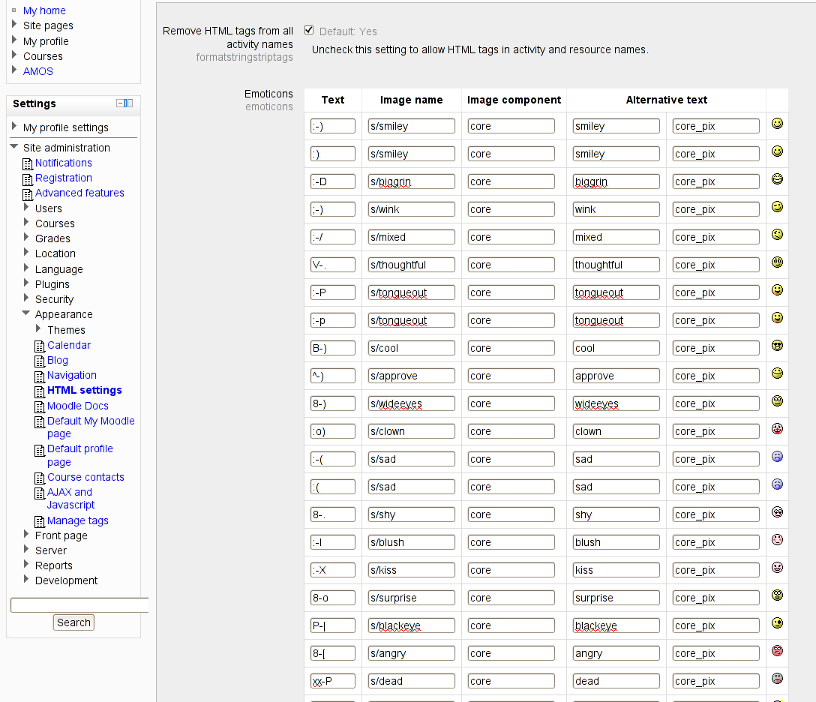
Form table fields
The form table maps the emoticon characters like :-) to an image that
will be used to display that emoticon. Images can be provided either by
the Moodle core itself or by any other installed plugin (like an
activity module, block, theme or your plocal plugin). For accessibility
reasons, alternative texts for these images should be defined, too.
Emoticon text
Into the first column, insert the text representation of the emoticon. The emoticon filter converts these texts into images. The text must pass the following constraints:
- It must be at least two characters long
- It can not contain
:/and//substring to avoid accidental breaking of URL addresses - It must contain some non-alphanumeric character to prevent from breaking HTML tags in the text
Image name and component
The default set of emoticons are provided by Moodle core itself. In that
case, the image component is set to core. The image name is a relative
path to a file without the trailing slash and without the file
extension. The image must be located in the /pix folder of the given
component.
Example: if the image name is set to s/smiley and the image
component is set to core, the image file {dirroot}/pix/s/smiley.gif
from your Moodle installation folder is used to display that emoticon.
Alternative text
Alternative texts are taken from language packs that can be again provided by either the core or a plugin. The first field value is the string identifier and the second field value is the name of the component providing that string (see the language packs documentation for details).
Example: if the emoticon has the alternative text set to smiley and
core_pix, then the localized text will be obtained from the file
{dataroot}/lang/XX/pix.php where XX is the current language code. If
that translation is available, the value from the English pack
{dirroot}/lang/en/pix.php will be used.
Technical note: these two values are passed as the parameters to the
get_string() function to obtain the alternative text
Custom emoticons
To support your own emoticons, just add another row into the form table. However, if the images and their alternative texts are not available in the Moodle yet, you will have to add them in a form of an installed plugin, typically together with a theme or via your local plugin. The following section illustrates some options how to register emoticons provided by various types of plugins.
Emoticon provided by activity module
Let us say we want to use the emoticons system to display Workshop
module icon instead of (workshopicon)
text. As you can see, the icon is located in
{dirroot}/mod/workshop/pix/icon.gif. Just add the following row into
the emoticons form table:
| Text | Image name | Image component | Alternative text | |
|---|---|---|---|---|
| (workshopicon) | icon | mod_workshop |
Save changes in the form and the icon should appear at the end of the
row. If you have the emoticon filter enabled, whenever you or your users
type (workshopicon) in the text, it will be replaced with the image.
You may want to use the localized term for the Workshop module as the alternative text for that image. Because the Workshop module already contains a string that we can use, just add the following values into the last two columns of the table and save the changes again:
| Text | Image name | Image component | Alternative text | |
|---|---|---|---|---|
| (workshopicon) | icon | mod_workshop | modulename | mod_workshop |
Emoticon provided by installed theme
Themes in Moodle 2.0 are able to
override any standard image provided by the Moodle core by default. So
if a file {themedir}/pix_core/s/biggrin.* exists it is automatically
used instead of standard {dirroot}/pix/s/biggrin.*. Themes like any
other plugins are also able to extend the standard emoticon set or
change the file names or their directories.
Let us say you have installed a theme named mychool that comes with
its own set of standard emoticons. Those emoticons must be located in
the /pix subfolder of that theme, for example in
{themedir}/pix/smilies/happy.png. Now you want to use the emoticons
provided by this theme instead of the default Moodle emoticon set. Just
replace the relevant rows in the table with the new values:
| Text | Image name | Image component | Alternative text | |
|---|---|---|---|---|
| :-) | smilies/happy | theme_myschool | smiley | core_pix |
Note that we replaced just the image name and component. So the alternative text will be taken from the core language pack which is probably already localized into many languages.
Preparing own set of emoticons
If you have a set of images you would like to use as emoticons at your site, we recommend you to prepare a local plugin that will just provided these emoticons, without any other functionality. Even though this way involves a bit more work at the beginning, it is preferable over direct modification of the standard Moodle files. By encapsulating your emoticon with a local plugin, you can safely upgrade your site without the risk of overwriting your modifications, deploy the local plugin at multiple servers and share your work easily with the others.
Writing a local plugin that provides a set of emoticons is not hard even if you are not experienced PHP developers. You can use a published example as a scaffold for your own work.